How to extract files from an old installer (without installing it)
By Andrew Nakas · Published July 1, 2026 · Updated July 1, 2026 · ~9 minute read
You've got an old setup.exe — a driver, a font pack, a decade-old utility — and you don't actually want to install it. You want the files that live inside it: a DLL, an icon, a handful of data files, or just the real program so you can run it without the setup wizard. On a modern machine the installer may refuse to run at all, or demand admin rights, or target a Windows version you no longer have. Good news: an installer is almost always just an archive with a wrapper around it, and there are several ways to reach inside without letting it install anything.
This guide walks through the options roughly in order of "try this first," and ends with the one that's actually running on this site: a browser sandbox that runs the installer, then hands you back the files it produced.
First, understand what an installer is
A Windows installer is a small program bolted onto a compressed payload. The wrapper's job is to unpack that payload, drop files into the right folders, and poke the registry. But the payload is the part you care about, and it's usually stored in one of a few well-known formats:
- InstallShield / self-extracting archives — often just a Zip, CAB, or 7-Zip stream with an
.exeheader in front. - NSIS (the Nullsoft installer, used by a lot of open-source apps) — a custom archive that common tools can read.
- Inno Setup — another hugely popular installer, unpackable with a dedicated tool.
- Windows Installer (
.msi) — a structured database of files and instructions, not a plain archive. - Microsoft cabinet files (
.cab) — the classic container behind drivers, updates, and many.msipayloads.
Which method works depends on which of these you're holding — so the practical approach is to try the general-purpose opener first, and reach for a format-specific tool only when that fails.
Method 1: Open it with 7-Zip (try this first)
If the file you are holding is a plain archive rather than an installer, our archive extractor will open it in the browser without installing anything — 7z, ZIP, RAR, TAR and the rest, all client-side.
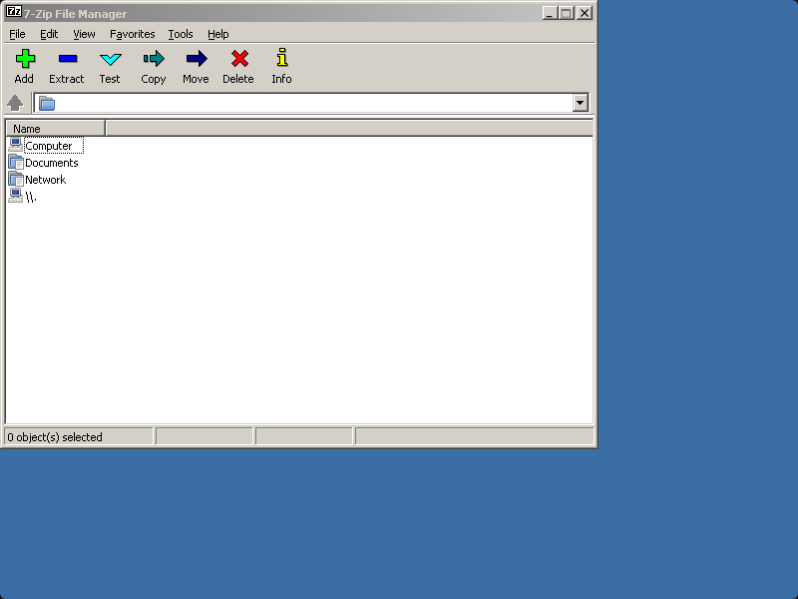
7-Zip is the single most useful tool here, because it treats a huge range of installers as browsable archives. You don't run the installer — you right-click it and choose 7-Zip → Open archive, and if 7-Zip understands the format you get a file listing you can extract from directly.
It handles self-extracting .exes, NSIS installers, Zip and 7z streams, and — importantly — CAB files and the internals of many MSIs. For a large share of old installers this is the whole job: open, look inside, drag the files out, done. 7-Zip is free and open-source, and you can even run it here in the browser to peek inside a small installer without installing 7-Zip itself.
If 7-Zip opens the file but shows only a stub or a single blob, the payload is in a format it doesn't unpack — move on to the specific tool below.
Method 2: Inno Setup installers → innoextract
A lot of indie games and utilities from the 2000s onward use Inno Setup. 7-Zip usually can't read these, but innoextract is built exactly for the job. It's a small command-line tool available on Windows, macOS, and Linux:
innoextract setup.exeThat drops the payload into an app/ folder next to the installer, folder structure intact — no install, no registry changes. Add --list to preview the contents first, or --gog if it's a GOG installer with extra data. It's the reliable answer whenever an installer shows the familiar Inno Setup wizard.
Method 3: Cabinet files → cabextract
Drivers, Windows components, and the inside of many MSIs are packed as .cab cabinet files. If you've extracted an MSI or a driver package and hit .cab files you still can't read, cabextract unpacks them anywhere:
cabextract driver.cabIt's cross-platform and handles the older MSZIP and LZX compression that occasionally trips up other tools. (7-Zip reads most CABs too, so try that first — cabextract is the fallback for the stubborn ones.)
Method 4: MSI packages → msiextract or lessmsi
An .msi isn't an archive — it's a small relational database describing files, folders, and install logic. You can still pull the files out without running it:
- On Linux/macOS, msiextract (part of the msitools package) dumps the file tree:
msiextract package.msi. - On Windows, lessmsi gives you a GUI to browse and extract, or you can use the built-in administrative install to a folder:
msiexec /a package.msi /qn TARGETDIR=C:\out— this copies the files out without actually installing the product.
MSIs sometimes store their payload in embedded CAB streams, which is why cabextract and msiextract often get used together.
Method 5: Run it in a sandbox and grab the output
Sometimes none of the above works — the payload is encrypted, the installer generates files on the fly, or it's a format nothing wants to read. In that case the pragmatic move is to let the installer run, but in a throwaway environment where it can't touch your real system, and then collect what it wrote.
That's exactly what the runtime on this site does. When you load an installer into ExeBrowser, it runs inside a WebAssembly sandbox — a self-contained fake Windows that exists only in the browser tab. The installer does its thing, writing to C:\Program Files, C:\Windows, and so on, but that "disk" is virtual and vanishes when you close the tab. Nothing reaches your actual machine.
The useful part: once the installer finishes, the "Download files written by this app" button becomes active. Click it and the sandbox zips up everything the installer created — the program files, DLLs, data folders — into a single exebrowser-output-*.zip you can save. In effect you've run the installer, discarded the mess, and kept only the files. No admin rights, no software installed on your computer, and nothing to uninstall afterward. It's the "when everything else fails" option, and often the fastest one for a small legacy installer.
When it fails: MSI error 1627 and friends
A few failure modes are common enough to name:
- MSI error 1627 ("function failed during execution"). This usually means the MSI's install logic hit something it couldn't do in the sandbox — a service it can't register, a system component it can't touch. The files themselves are still fine; switch to
msiextractor an administrative install (msiexec /a) to pull them out instead of running the full installer. - 7-Zip opens the
.exebut shows garbage. The wrapper isn't a format it recognizes. Identify the installer type (an Inno Setup or NSIS splash screen is a giveaway) and use the matching tool. - Extracted files exist but the program won't launch. Extraction and execution are different problems — you may have the files but be missing a runtime the installer would normally have set up. Our compatibility round-up covers what actually runs once you've got the files.
Quick decision guide
| What you have | Try this |
|---|---|
Any setup.exe, unsure of type | 7-Zip → Open archive |
| Inno Setup wizard | innoextract |
.cab file | cabextract (or 7-Zip) |
.msi package | msiextract / lessmsi / msiexec /a |
| Nothing reads it | Run in the browser sandbox, then "Download files written by this app" |
Between an archive tool, a couple of format-specific extractors, and a sandbox you can run in a browser tab, there's almost no legacy installer you can't get the files out of — without ever installing it on your real machine.