Run 7-Zip online in your browser Works well
Guide updated July 2026 · Runs via Wine 1.7.55 (Win32) + WebAssembly
If you just want to open an archive, there is a faster way. This page runs the real 7-Zip program, which means booting a 48 MB Wine runtime first — worth it if you want 7-Zip's own interface, slow if you only need the files out of a .7z. our archive extractor unpacks 7z, ZIP, RAR, TAR and more natively in the browser, with nothing to boot. Same principle either way: your files never leave your device.
The real 7-Zip — Igor Pavlov's free, open-source archiver — running in a browser tab. No download, no install, no account. 7-Zip opens just about every archive format there is: .7z, .zip, .rar, .tar, .gz, .iso and more. It's a small, classic Win32 application, which makes it one of the more reliable tools to run inside ExeBrowser when you need to crack open an archive on a device where you can't install anything. Hit play, point it at your archive, and extract.
FREE This is the complete game, free. LGPL open-source software, free to use and redistribute.
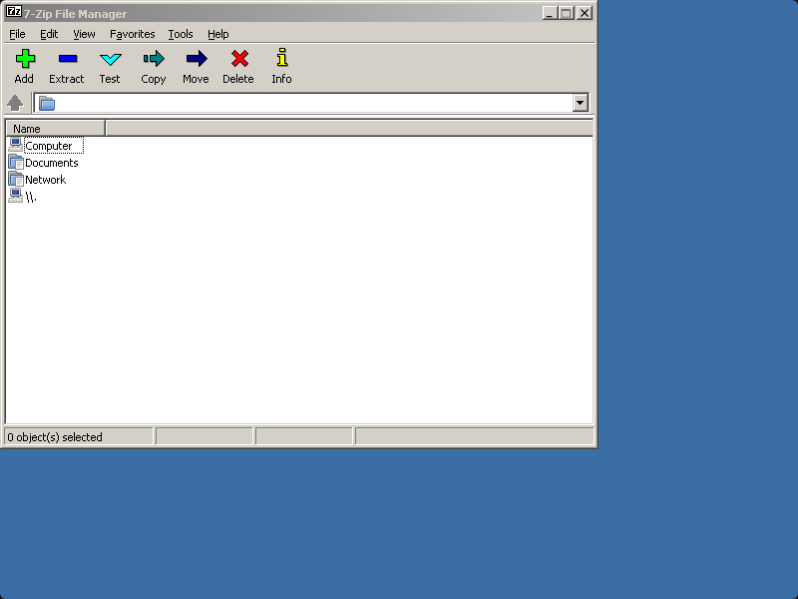
Runs in your browser tab with WebAssembly + Wine — nothing is uploaded. Click the screen to capture input; press Esc to release the mouse.
Get 7-Zip (free, open-source)
7-Zip is free, open-source software under the GNU LGPL, distributed at no charge. Grab a 32-bit release — the Wine engine here is 32-bit only, so the x64 build won't run.
Download 7-Zip from 7-zip.org →
Pick the 32-bit .exe or extract the program files and keep 7zFM.exe + 7z.dll. Then use Load your own copy above and drop in a folder that also contains the archive you want to open. 7-Zip © Igor Pavlov, licensed under the GNU LGPL (the unRAR component has an additional restriction).
How it works & what to expect
ExeBrowser runs the actual 7-Zip Win32 binary — the File Manager (7zFM.exe) backed by 7z.dll — inside an x86 emulator and Wine, drawing to a browser canvas. It isn't a JavaScript reimplementation; it's the same program you'd run on Windows. Because everything executes locally in your tab, your archives are never uploaded to a server. The emulator runs at roughly 10–40% of native CPU speed, which is plenty for browsing and extracting; very large or heavily-compressed archives will simply take longer to unpack than they would natively.
| App | 7-Zip File Manager (7zFM.EXE) plus console (7z.exe) |
|---|---|
| Best Wine variant | Win32 (default) |
| Which build | A 32-bit release — any modern 32-bit 7-Zip is fine |
| Formats | 7z, zip, rar, tar, gz, bz2, xz, iso, cab, and more |
| Getting files out | Extract inside 7-Zip, then “Download files written by this app” |
Bundle the archive alongside 7-Zip
ExeBrowser's C:\ drive is in-memory, so 7-Zip can only see what you give it. Put 7zFM.exe, 7z.dll and the archive you want to open into a single folder on your computer, then use Load your own copy → a folder. Inside the 7-Zip File Manager, navigate to your archive, extract it to a subfolder, and use Download files written by this app to pull everything back out as a zip.
- Click ▶ Run 7-Zip above to boot Wine on this page.
- Load the folder containing
7zFM.exe,7z.dlland your archive. - Double-click your archive in the file manager, then hit Extract.
- Use Download files written by this app to get the extracted files back.
Use the 32-bit build
The Wine engine here is 32-bit only, so grab a 32-bit 7-Zip rather than the x64 build (64-bit binaries will not run). The installer is itself an EXE; if you'd rather skip installing, extract the program files with another archiver first and upload just the 7zFM.exe + 7z.dll pair, which is all the File Manager needs to open and extract archives.
When to use it vs. a native tool
For a single quick extract of a common format, a JavaScript-based extractor running natively in the browser will be faster than emulating x86. 7-Zip in ExeBrowser is the right call when you need its broad format support (some obscure or nested formats only it handles cleanly), want the familiar File-Manager UI, or are already using ExeBrowser for other Windows tools and want one consistent environment.
Frequently asked questions
Can I extract a 7z or rar file online without installing anything?
Yes. ExeBrowser runs the real 7-Zip File Manager in your browser via Wine + WebAssembly, so there's nothing to install. Bundle 7zFM.exe, 7z.dll and your archive into one folder, load them, extract, then download the results.
Is this the real 7-Zip or a clone?
It's the real, unmodified 7-Zip Win32 binary running inside an x86 emulator and Wine. ExeBrowser doesn't reimplement it — it runs Igor Pavlov's actual program and renders it to a browser canvas.
Are my files uploaded anywhere?
No. Everything runs locally in your browser tab. The files you load go into an in-memory C:\ drive that exists only in your session; nothing is sent to a server.
Why use 7-Zip here instead of a native browser extractor?
For a single common-format extract, a native JavaScript extractor will be faster. Use 7-Zip when you need its broad format support, the familiar file-manager UI, or a consistent environment alongside other Windows tools.
Which 7-Zip build should I load?
A 32-bit release. The Wine engine is 32-bit only, so the x64 build won't run. Any modern 32-bit 7-Zip works; you only need 7zFM.exe and 7z.dll for the file manager.