PuTTY in your browser: the UI runs, SSH can't connect Partial — the UI launches, but SSH/telnet can't connect in-browser
Guide updated July 2026 · Runs via Wine 1.7.55 (Win32) + WebAssembly
PuTTY is the classic free, open-source SSH, telnet and serial client for Windows — a single tiny .exe with no installer — and it launches here in one click, with one big caveat: the UI runs, but live SSH and telnet connections can't be made from a browser tab. As a clean 32-bit Win32 program it launches beautifully in ExeBrowser: you get the real configuration dialog, saved-session list, and terminal window, all running on Wine + WebAssembly with nothing to install. The honest catch is networking. A browser tab is sandboxed and cannot open raw TCP sockets, and Boxedwine's emulated socket layer is incomplete, so PuTTY can show you everything up to the moment it tries to reach an SSH server — and then the connection will fail. Treat this page as a way to explore the real PuTTY interface, not as a working remote terminal.
FREE This is the complete game, free. MIT-licensed open-source software.
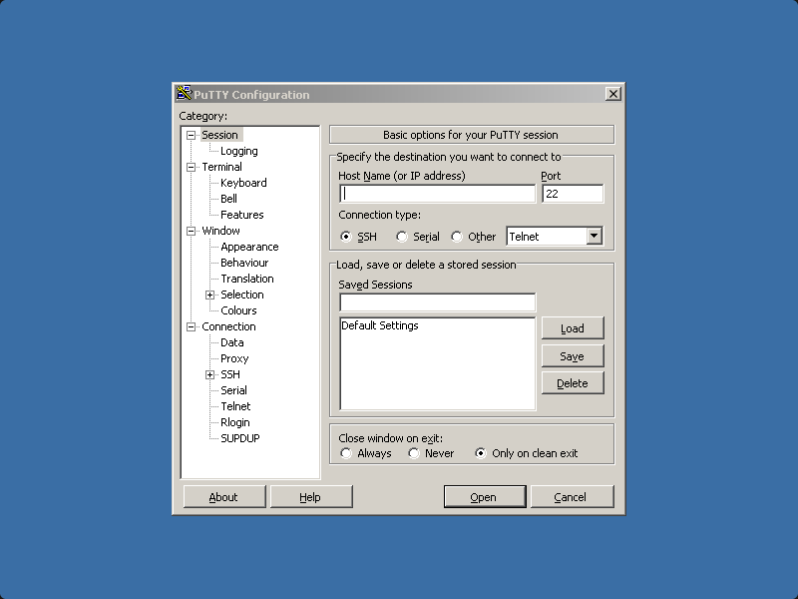
Runs in your browser tab with WebAssembly + Wine — nothing is uploaded. Click the screen to capture input; press Esc to release the mouse.
Get PuTTY (free, open-source, MIT)
The official PuTTY release
PuTTY is released under the permissive MIT licence — free to use and redistribute unmodified, even commercially. Always get it from the author's official site so you can verify the signatures and avoid the many lookalike sites that bundle adware:
Download PuTTY from the official site →
The standalone putty.exe needs no installer — it's a single Win32 binary. Use “Load your own copy” above to drop it in, or hit Play to launch our hosted copy. © Simon Tatham and the PuTTY team; distributed under the MIT licence.
What actually works (and what doesn't)
PuTTY is two things stacked together: a tidy Win32 GUI, and a network client underneath it. ExeBrowser nails the first half and can't deliver the second.
- Launches and renders correctly. The configuration window, the category tree (Session, Terminal, Window, Connection, SSH…), saved sessions, font and colour options, and the terminal window itself all appear and respond as they do on Windows.
- Networking does not connect. When you enter a host and click Open, PuTTY tries to open a TCP socket. Inside a browser tab that's impossible — the sandbox forbids raw sockets — and Boxedwine's emulated socket support is partial, so the connection times out or errors instead of reaching your server.
- Serial and local features have nothing real to talk to in the browser either, since there are no host serial ports exposed to the sandbox.
So: great for seeing what PuTTY looks like and how it's configured; not a substitute for a real SSH session.
Why the browser can't open the connection
This isn't a PuTTY bug or a Wine quirk you can configure around — it's a hard boundary of the platform. Web pages are only allowed to make network calls through high-level, permission-controlled APIs (HTTP fetches, WebSockets), never raw TCP/IP. PuTTY, like every native SSH client, expects a real socket to the outside world. ExeBrowser emulates an x86 CPU and Wine inside WebAssembly, but it can't hand the program a socket the browser refuses to create. The result is that everything up to the network call works, and the network call itself fails.
If you genuinely need SSH from a browser, the right tool is a server-side web SSH gateway (something the remote host or your hosting provider runs), not a desktop SSH client emulated client-side. For day-to-day use, install native PuTTY — it's a few hundred kilobytes and runs instantly on real Windows.
How to launch it here
- Click ▶ Run PuTTY above to boot Wine on this page, or use Load your own copy and drop in
putty.exefrom the official download. - The default Win32 variant is correct — PuTTY is a small, well-behaved 32-bit program and needs no special engine.
- The PuTTY Configuration dialog appears. Browse the categories, tweak terminal colours and fonts, set up a saved session — all of this works.
- Entering a host and clicking Open will not connect, for the socket reasons above. That part is expected to fail in-browser.
Because PuTTY is a single self-contained binary with no DLL dependencies or installer, it's one of the cleaner Win32 apps to launch here — the limitation is purely networking, not compatibility.
Frequently asked questions
Can I actually SSH into a server with PuTTY in the browser?
No. PuTTY's interface launches and is fully usable, but a browser tab cannot open the raw TCP socket an SSH connection needs, and Boxedwine's emulated networking is incomplete. You'll see the connection attempt fail. For real SSH, install native PuTTY on your computer.
Is PuTTY free and legal to run here?
Yes. PuTTY is open-source software under the permissive MIT licence, which explicitly allows anyone — including companies — to use and redistribute it unmodified at no charge. That's why we can host a copy directly. You can also bring your own from the official site.
Why does the PuTTY window open but connections time out?
Everything up to the network call runs in the emulator; the network call itself can't. Browsers only allow controlled APIs like HTTP and WebSockets, never raw TCP/IP sockets, so when PuTTY tries to reach your host the browser refuses and the attempt fails. It's a platform boundary, not a misconfiguration.
Where should I download the real PuTTY?
Always use the official site at chiark.greenend.org.uk/~sgtatham/putty. Many lookalike sites bundle adware or modified builds. The standalone putty.exe needs no installer — it's a single Win32 binary you can run immediately on Windows.
What's the point of running PuTTY here if it can't connect?
Mainly to explore and demo the real interface — the configuration tree, saved sessions, terminal appearance, and SSH options — without installing anything. It's useful for screenshots, teaching, or curiosity, but it isn't a working remote terminal.
More you can play in your browser

Related guides
- FileZillaThe open-source FTP client — same networking caveats apply.
- KeePassOpen-source password manager that runs offline and works well.
- 7-ZipFree, open-source archiver that runs cleanly in the browser.
- Notepad++The popular free code and text editor in a tab.
- SumatraPDFLightweight open-source PDF and ebook reader.
- Compatibility guideWhat runs in ExeBrowser and what doesn't — including networking.